
Originally prepared for Nerd Noon - Oct. 28, 2009
Last Update: August 23, 2011
| CHDK Links and some scripts that I use |
| start here - CHDK wiki (home) | http://chdk.wikia.com/wiki/CHDK |
| firmware downloads page | http://chdk.wikia.com/wiki/Downloads |
| scripts | http://chdk.wikia.com/wiki/UBASIC |
| progress being made on firmware builds | http://chdk.wikia.com/wiki/For_Developers |
| interval script (10 frames) - for viewing | interval.bas (remove .txt extension after download) |
| modified interval script (30,000 frames) - for viewing | interval30k.bas (remove .txt extension after download) |
| motion detection script - for viewing | motion_detection.bas (remove .txt extension after download) |
| 3 scripts archived (see above) for download | stan_scripts.zip |
| firmware build for OCAD AV Loans CANON SD400 | ixus50_sd400-101b-0.9.8-822-full.zip |
| CHDK FAQ send questions to stan at skrzyzanowski@faculty.ocad.ca |
| I am working on a time-lapse project, but would like to know where to purchase the AC adaptor for the canon hack | I've purchased adapters from http://www.bestbatt.com/ - it's online and they are in the states but the service is quite fast - within a week. These are no-name adapters and they are probably not nearly as good (in manufactured quality) as an adapter from Canon, but are far less expensive. I've also purchased batteries from http://www.battdepot.ca/ and they are Canadian, but I don't know if they sell AC adapters - you'll have to check. |
| I can't figure out how to use the macro setting on the camera while in 'hack mode'. Advice? | To change to macro mode you need to get out of the hack mode first, set the macro and then go back into hack mode. All your camera settings need to be made while out of hack mode. |
| I was looking into buying a canon camera to use with the CHDK scripts. I was wondering if you could recommend a camera model to buy that had an AC adapter and works with the script? Any tips or info would be greatly appriciated | I am getting asked this question fairly often and I recommended the A590IS. It's not the best camera out there but it's the best one I've used so far and the only other one I've used is the SD850IS (see video below). The A590 has a nice port on the side for AC power. It also has good camera controls, manual and automatic, and the access door for the card is well away from the tripod mount. I have found them used from $50 to $100 each. People get impatient with them I think because they burn through batteries pretty fast (they take two AA batteries). You can see all supported cameras on the CHDK site here: http://chdk.wikia.com/wiki/CHDK |
| Any tips on mounting the camera? We are documenting an animation we are doing, and mounting the camera directly above our work space | My suggestions are to make sure the camera position and camera mount allow for the card access door to be open enough to get the card in and out, in case you want to check the results, and in case the card fills-up. You may need to use a mirror to see the screen when you set-up the camera If you have a TV with RCA jacks for input you can connect the usb cable to the camera to see the screen remotely on the TV. To shoot using an interval function you will need to use an interval script. I edited a script I found online so that it keeps going until 30,000 images (which should be more than enough), as the default was only 10 images. You can edit the script with any text editor. The script is named 'interval30k.bas' and you will need to put it in the CHDK/SCRIPTS/ folder on your card once you get the hack. You can download 'interval30k.bas' in the following .zip file: http://webspace.ocad.ca/~stan/chdk/stan_scripts.zip |
| What do I need to know when setting up the interval amount for a time-lapse shoot? |
In case this helps the video here: http://www.vimeo.com/28010844 is made from the camera running at Halo Halo (starting on Aug 10, 2011 - 6:07pm and ending on Aug 21, 10:022am) until the 4GB card filled up. I ended up with 12,625 images (M3 - 1600 x 1200 pixels at Fine resolution) and in the video (07:01) they play back at 30fps. Something else to watch out for is the file numbering with large numbers of files. After IMG_9999.jpg Canon goes back to IMG_0001.jpg and if this happens in your shoot the order of your numbering sequence will be off, and if you shoot more than 10,000 images then you'll have several images with the same file name. Be careful! Another thing... I think the CHDK interval script counts the time of the interval between the pictures and does not include the time of the actual exposure itself. For short exposures this may not mean much, but the total amount increases considerably over a long period of shooting and if things don't add-up for you when making calculations, then it may be because you haven't taken into consideration the accumulated time taken for exposures. At The Earth Ship http://www.vimeo.com/20545524 I set the CHDK cameras on a two-second timer, so I had a 2-second warning before the camera took a shot. Ten seconds is also available. This might help if you want to have a small amount of control during each exposure (getting your head out of the way, for example...). The warning can be in the form of a flash with or without an audible beep beep beep. This will also help you know that the camera is still shooting, and it may also drive you completely crazy... |
| Using CHDK with the CANON SD400 from OCAD AV Loans
The following steps may help you to get up and started with this camera |
| step 1 | format the camera card in the camera | This step may not be absolutely necessary, but is a good idea if things are not working. |
| step 2 | use a card reader to load the firmware in the root directory of the card | Download the zip file above and unarchive the download. Copy the unarchived files onto the camera card. You must use a card reader for this. |
| step 3 | use a card reader to load scripts onto the card and into the CHDK/Scripts folder | If you want to run a script, it needs to be copied into the "Scripts" folder in the "CHDK" folder on the card. The three scripts I show in the workshop are available for download above. Other scripts are available from the CHDK page. You must use a card reader to copy these files onto the card. |
| step 4 | put the card in the camera | |
| step 5 | turn on the camera in "play" mode | The camera must be started in "play" mode. It won't work if started in "shooting" mode, even if you switch it to "play" |
| step 6 | press the menu button | |
| step 7 | scroll down to the bottom item on the menu list. It should be "Firm Update..." | If you don'r get the "Firm Update..." item on the menu list, then something is not working and you need to go back to see what you missed. |
| step 8 | click the set button to go to the "Firm Update..." page | |
| step 9 | scroll right to highlight "OK" | |
| step 10 | click the set button to load the firmware | |
| step 11 | switch to shooting mode | |
| step 12 | push the print button to toggle between running the update and the original firmware | Select the camera settings you want to shoot with while in the firmware mode that is original to the camera. Select the script and shoot using the script while in the updated CHDK firmware mode. An "<ALT>" indicator will appear on the bottom of the screen when in the updated CHDK firmware mode. |
| step 13 | press the menu button while in the updated CHDK firmware mode. | An "<ALT>" indicator will appear on the bottom of the screen when in the updated CHDK firmware mode. |
| step 14 | scroll to "Scripting Parameters" and press the set button | |
| step 15 | In the Script menu scroll to "Load script from file. . ." and press the set button | |
| step 16 | scroll to the script you wish to run and press the set button to select it and return to the Script menu | |
| step 17 | In the Script menu, notice the name of the script you selected loaded with it's name and a line through it and part way down the menu. Below the line you can change the settings on how the script runs. When you have everything set the way you like, press the menu button to exit the menu | |
| step 18 | Press the shutter button to run the script and start taking pictures. Press the shutter button again to interrupt the script. Press the shutter again to start the script again. | |
| step 19 | Before running a script, or with the script interrupted (i.e.; not running) use the print button to toggle back and forth between the firmware mode that is original to the camera and the updated CHDK firmware mode. | |
| step 20 | when you're done, turn off the camera and the camera is left untouched by the firmware. To use the firmware again, go back to step 5. |
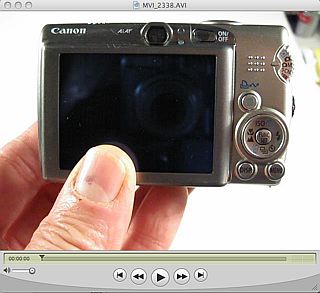 CANON PowerShot SD850 IS Digital Elph |